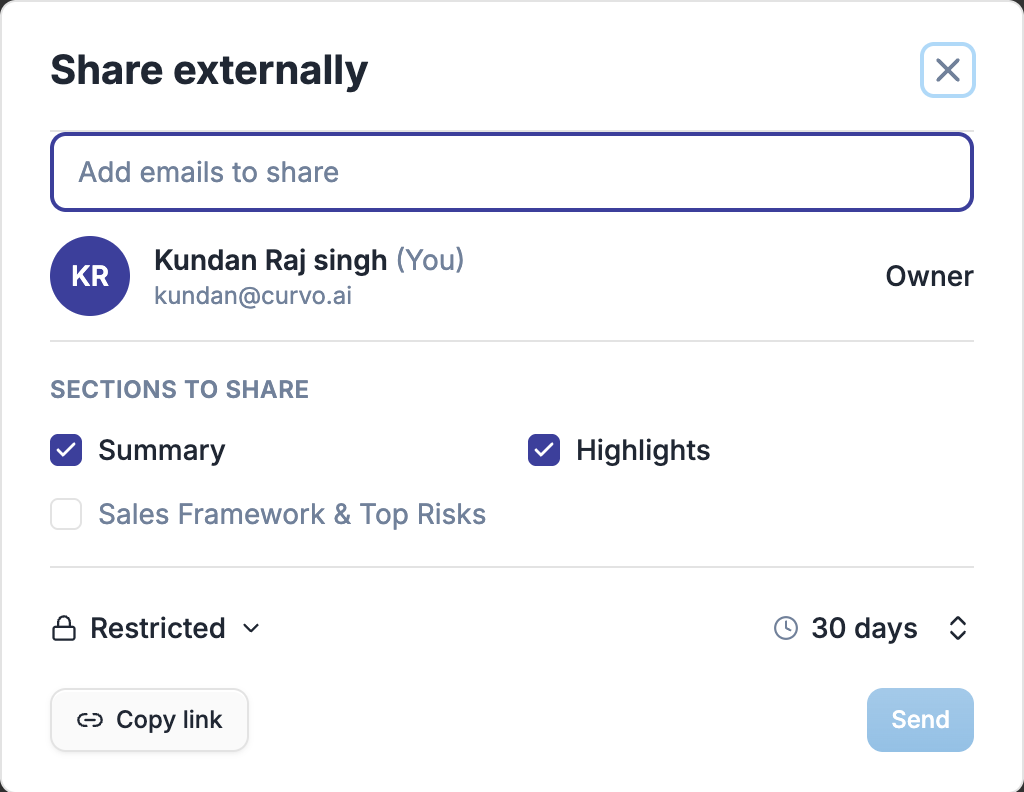
Recording, Transcript, and Clips
In this article
In this article group
Every meeting processed by Curvo AI gives you access to the full video recording, a searchable transcript, and tools to clip and share specific moments. These features are available in the right panel of any meeting detail view, across all tabs.
Video Recording
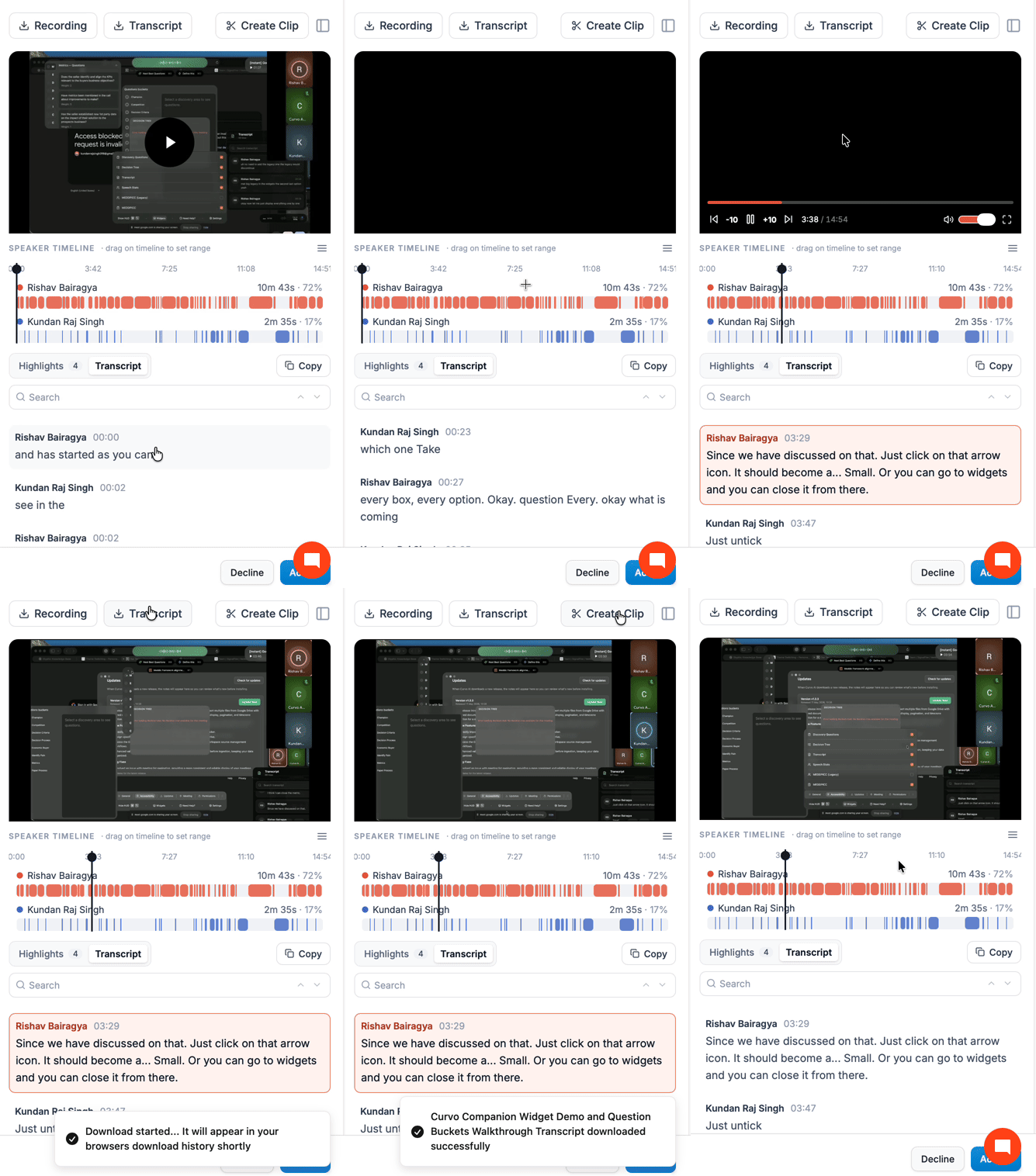
The meeting recording is embedded directly in the right panel. You can play it back at any time without leaving the meeting detail view.
Controls available:
Play / Pause: Standard video playback
Seek: Click anywhere in the Speaker Timeline below the video to jump to that point in the recording
Transcript sync: Clicking any line in the transcript automatically jumps the video to that exact moment
Download the Recording
Click Recording (with the download icon) at the top of the right panel to download the full meeting video as an MP4 file.
Transcript
The transcript is a full, speaker-attributed, timestamped text record of the meeting. It appears below the video in the right panel.
Each entry shows the speaker's name and the timestamp of when they spoke
Clicking any transcript entry plays the video from that moment
Transcript lines are synced to the Speaker Timeline: clicking a timeline segment scrolls the transcript to the corresponding exchange
Download the Transcript
Click Transcript (with the download icon) at the top of the right panel to download the full transcript as a text file.
Copy the Transcript
Click the Copy button next to the Clips / Highlights / Transcript tabs to copy the full transcript text to your clipboard.
Speaker Timeline
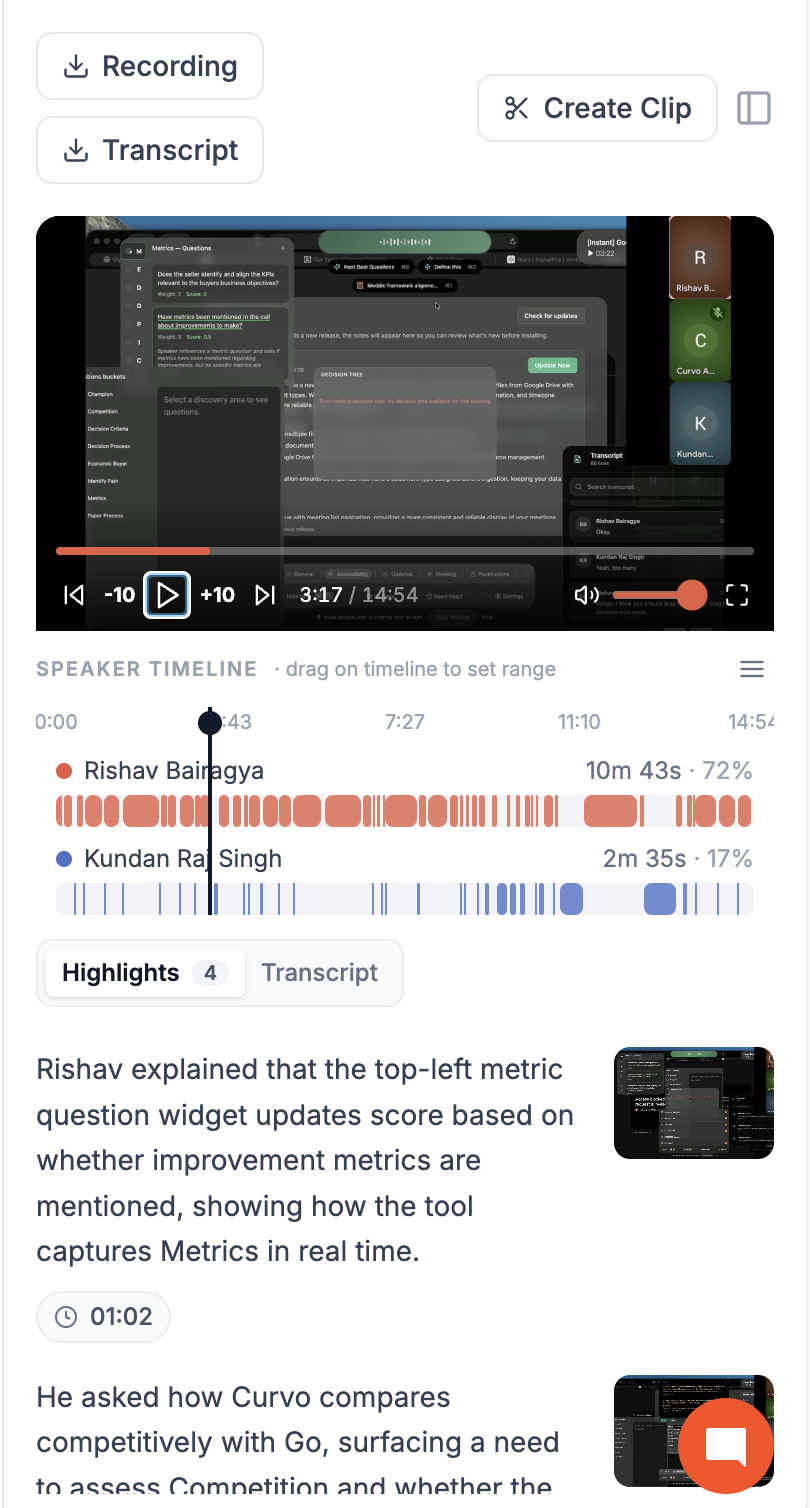
The Speaker Timeline sits between the video and the transcript. It shows a colour-coded visual representation of when each participant spoke throughout the call.
Each speaker has their own row with:
Coloured blocks indicating their speaking segments
Total speaking time (e.g. 14m 4s)
Percentage of total speaking time (e.g. 52%)
Interactive features:
Click a segment to jump the transcript and video to that moment
Drag to set a time range to focus on a specific portion of the meeting
Highlights
Click the Highlights tab (next to Clips and Transcript in the right panel) to see a curated list of the most significant moments from the call, each with an event timestamp.
Highlights are automatically identified by Curvo AI as moments of particular importance, such as a key objection, a commitment made, or a decision reached.
Clips
Clips let you save and share specific segments of the meeting recording. This is useful for sharing a key moment with a colleague or manager without sending the full recording.
Creating a Clip
Click Create Clip at the top of the right panel
A clip editor will appear. Select the start and end of the segment you want to clip.
Give the clip a title
Choose your sharing settings (see below)
Sharing a Clip
Once a clip is created, the Share Clip modal gives you several options:
Option | Description |
|---|---|
Title | Name the clip for context when sharing |
Send to | Enter email addresses to send the clip directly |
Anyone with link | Generate a shareable link accessible by anyone |
Expires in | Set an expiry period for the link (e.g. 30 days) |
Copy clip link | Copy the shareable URL to your clipboard |
Download mp4 | Download just the clipped segment as an MP4 |
Send | Send the clip via email to the recipients you specified |
Sharing the Full Meeting
To share the entire meeting with a team member, click Share in the top-right corner of the meeting detail view. This grants access to the recording, transcript, summary, notes, and all other tabs for that meeting.